Build your own workflows in ALK: meet the workflow builder
Every team that works with documents has a process nobody wrote down. The claim comes in, someone checks it has everything, someone else checks it against the policy, a manager signs off, and somebody emails the customer about the page that was missing.
Most software can help with one piece of that. Very little of it can run the whole thing, and even less can show you, step by step, why it made each call.
That is what the ALK workflow builder is for. It has been in ALK for a while, and when we show it to people the reaction is usually the same: "wait, you can do that?" So this is the tour we should have given sooner.
Two ways to build
When you create a workflow in ALK you pick how you want to build it.
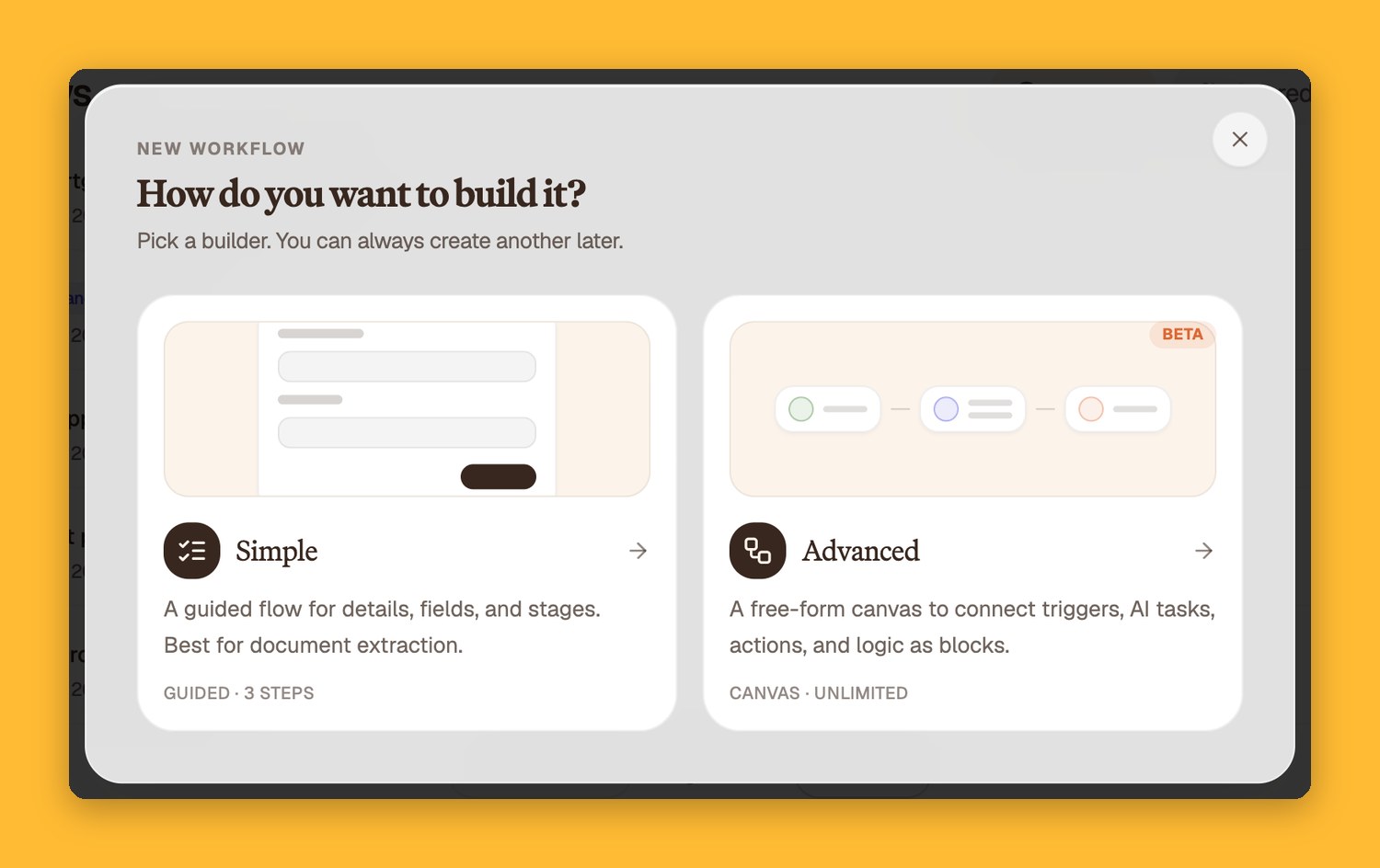
- Simple walks you through details, fields and stages. It is the quickest way to pull data out of a stack of documents.
- Advanced (in beta) opens a canvas where you connect blocks into a full process, with steps, branches and approvals.
The rest of this post is about the canvas. It is in beta, so it is still changing, and we want to hear what you build with it.
The canvas and its blocks
Every workflow is made of blocks. You drag them in from the library and connect them, and each one does one job.
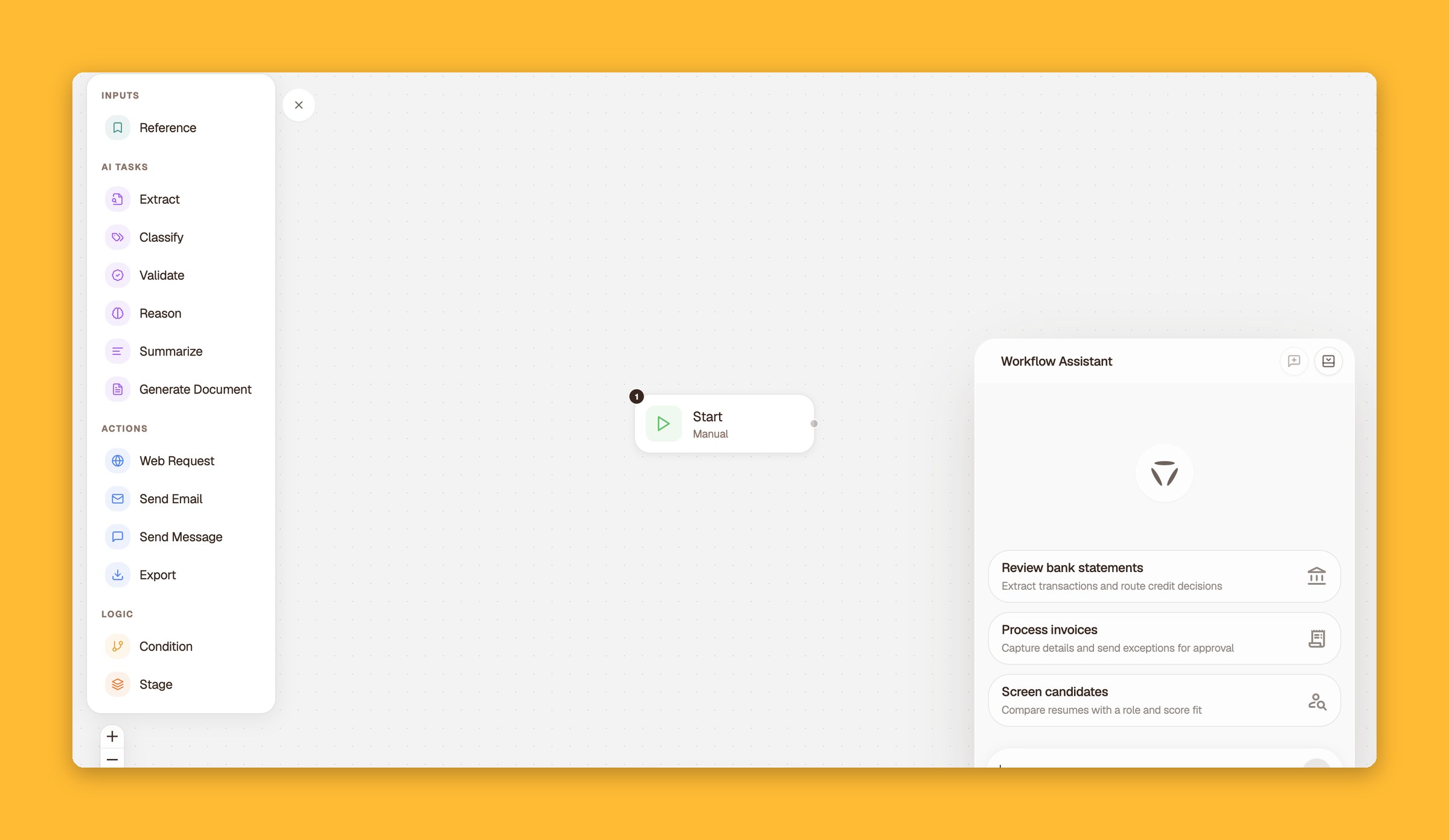
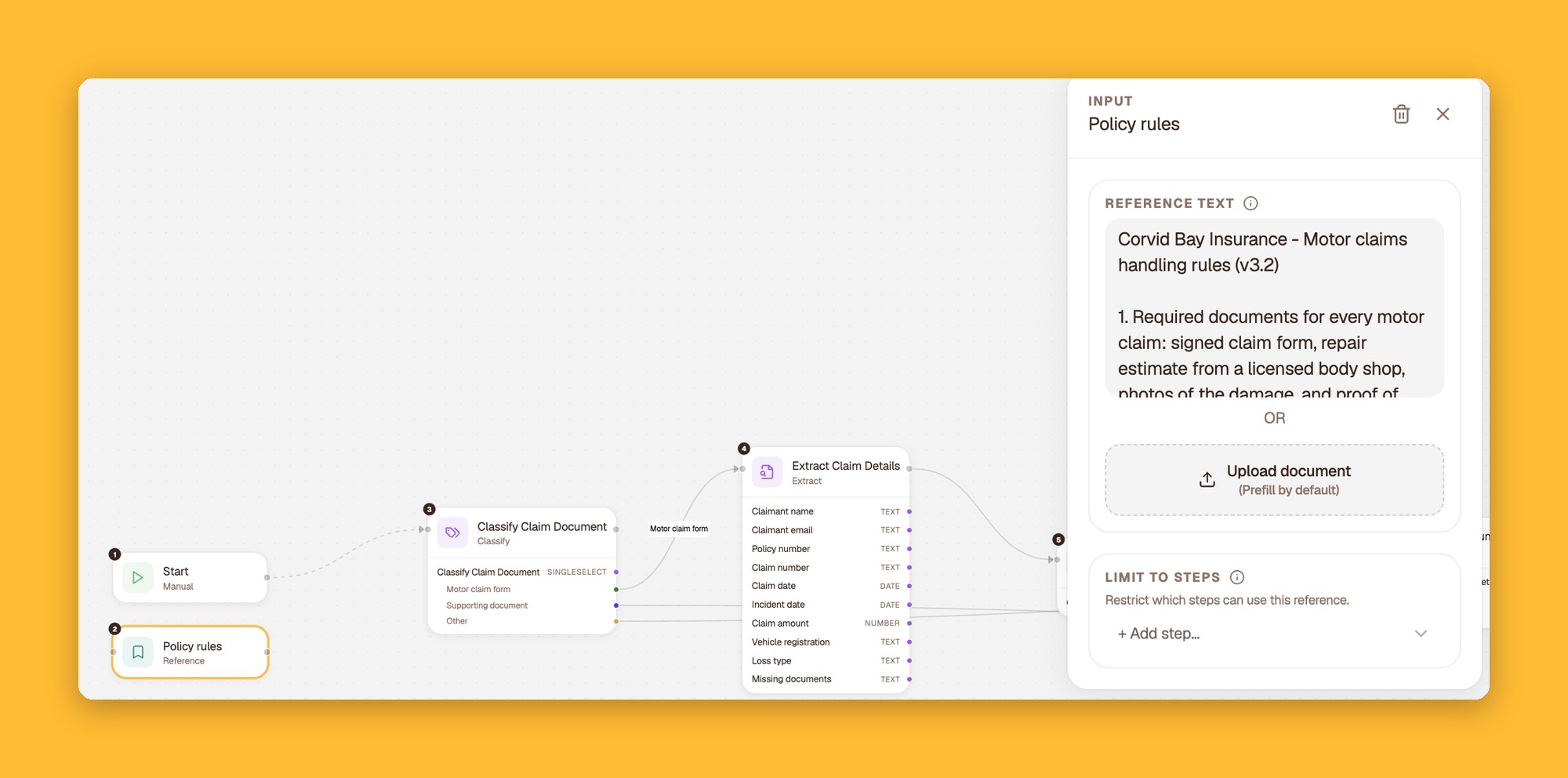
- Inputs. A Reference holds your source of truth, such as a policy, a rulebook or a credit checklist. Any step can use it.
- AI tasks. Extract pulls fields from documents. Classify sorts documents into types. Validate checks them against rules. Reason works through a question step by step and explains itself. Summarize and Generate Document write for you.
- Actions. Send Email, Send Message (WhatsApp, Teams or Slack), Web Request to call your other systems, and Export.
- Logic. Condition branches the flow. Stage groups items and can require a person to approve them.
Or just describe it
You don't have to drag anything if you don't want to. The Workflow Assistant sits next to the canvas. Tell it what the process is, in the words you would use with a new colleague, and it lays out the blocks, the branches and the rules.
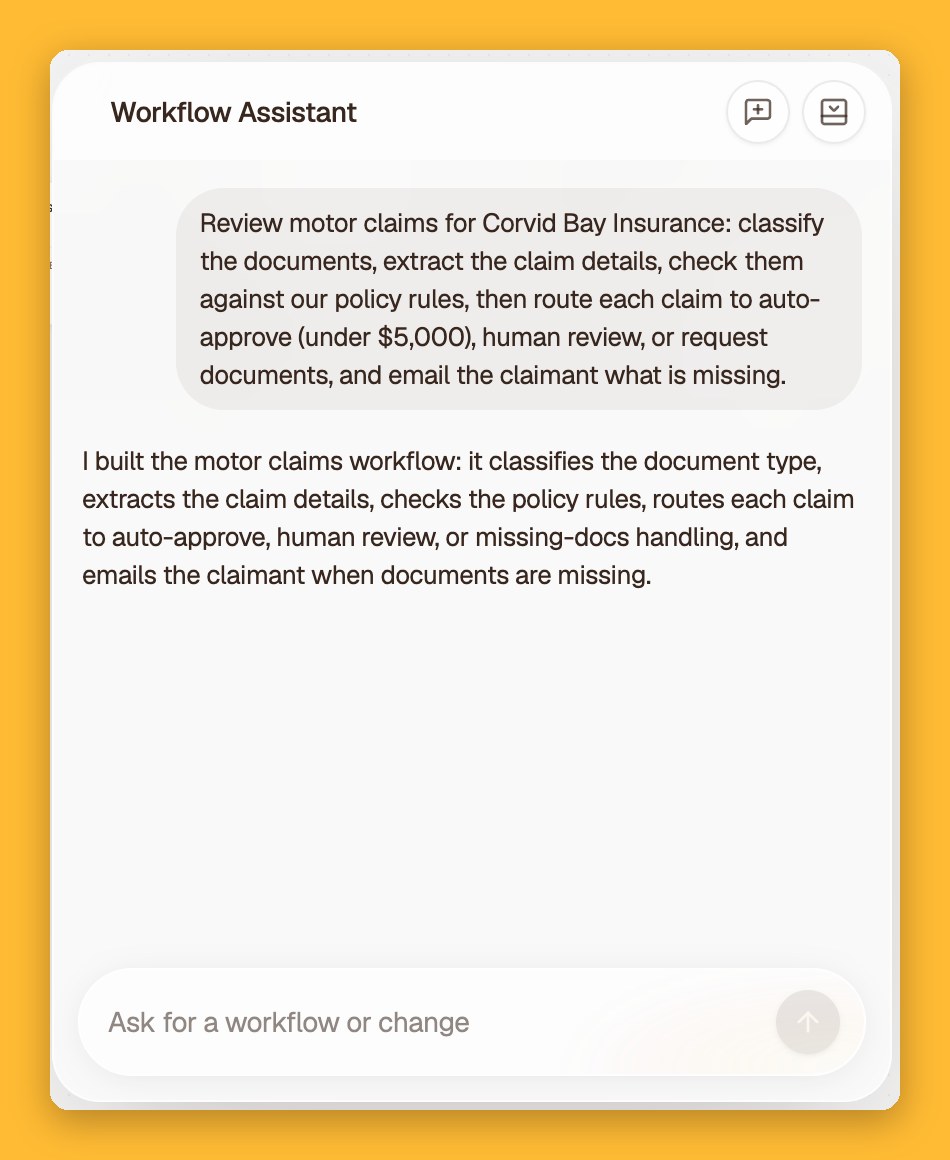
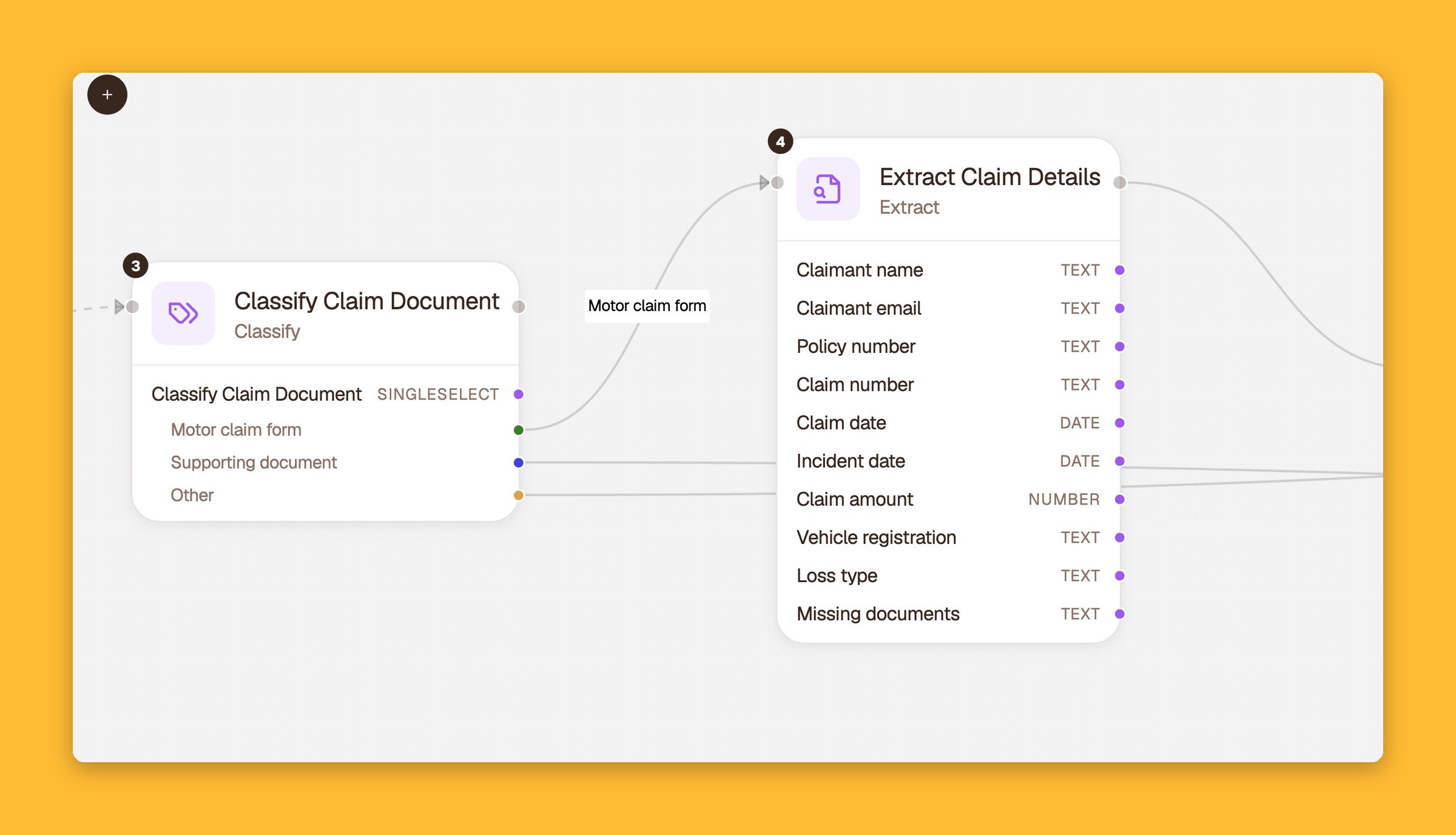
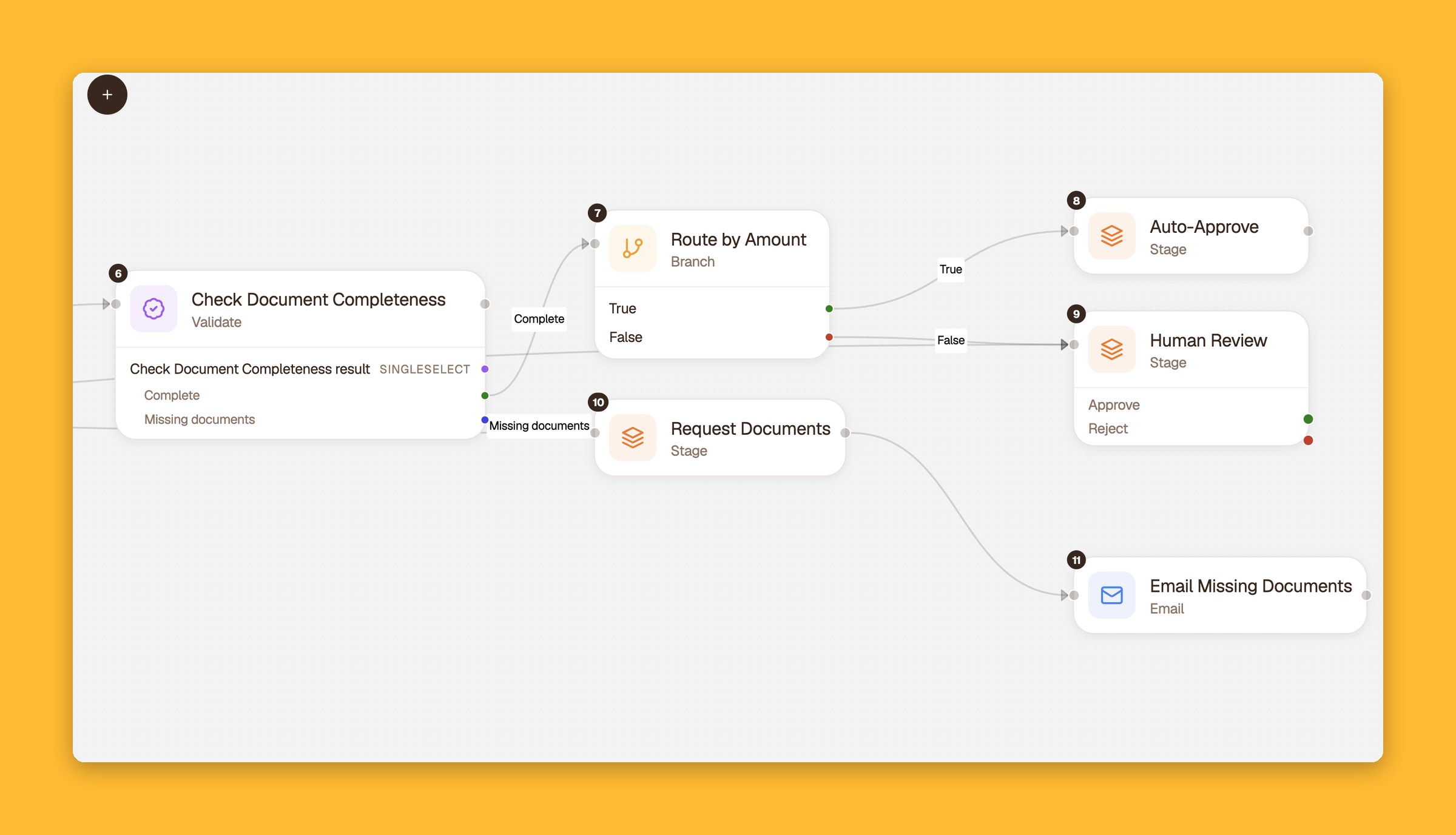
Throughout this post we follow Corvid Bay Financial Group, the Toronto company we use to show ALK at work. Take motor claims at Corvid Bay Insurance. The claims team described their process to the Assistant in one sentence: review motor claims, classify the documents, extract the claim details, check them against our policy rules, route each claim to auto-approve, human review or request documents, and email the claimant what is missing.
Here is what came back, block for block.

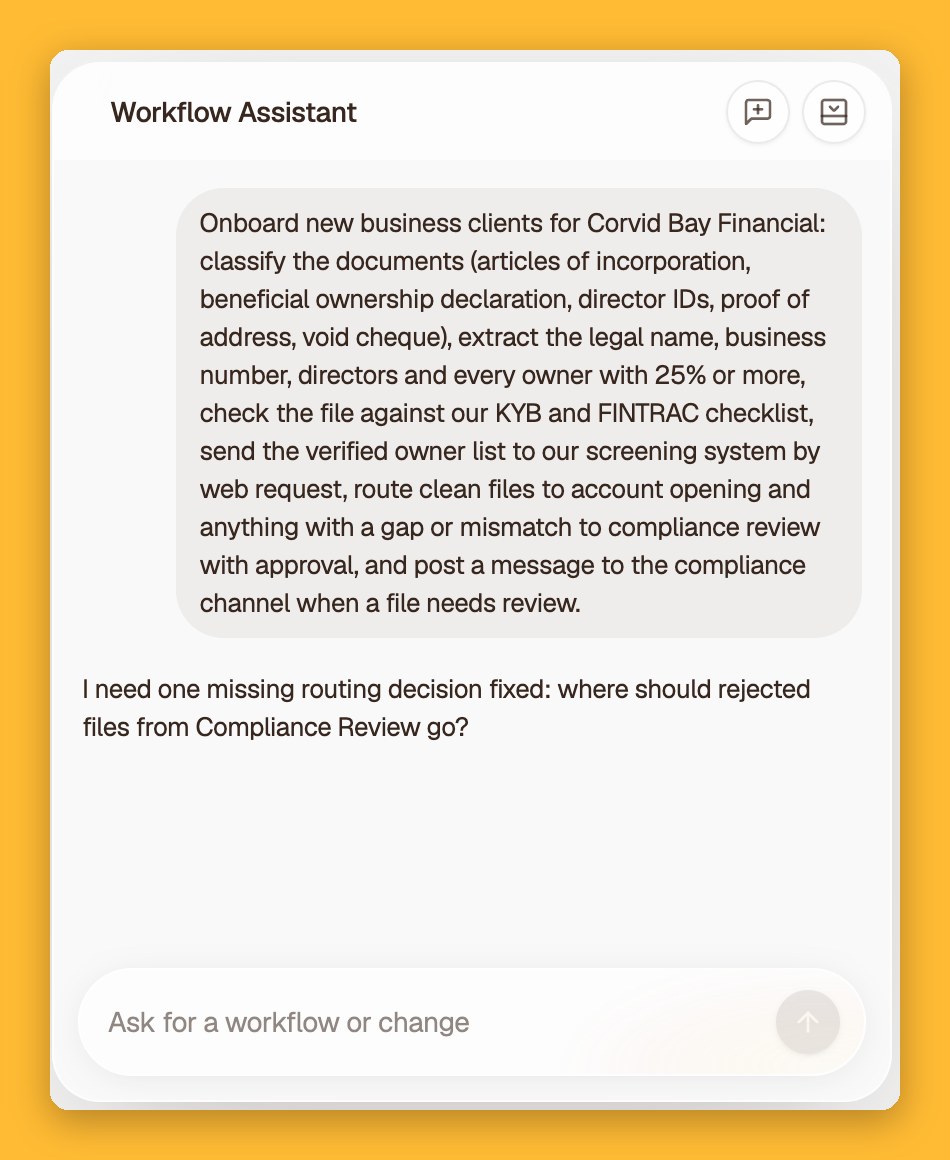
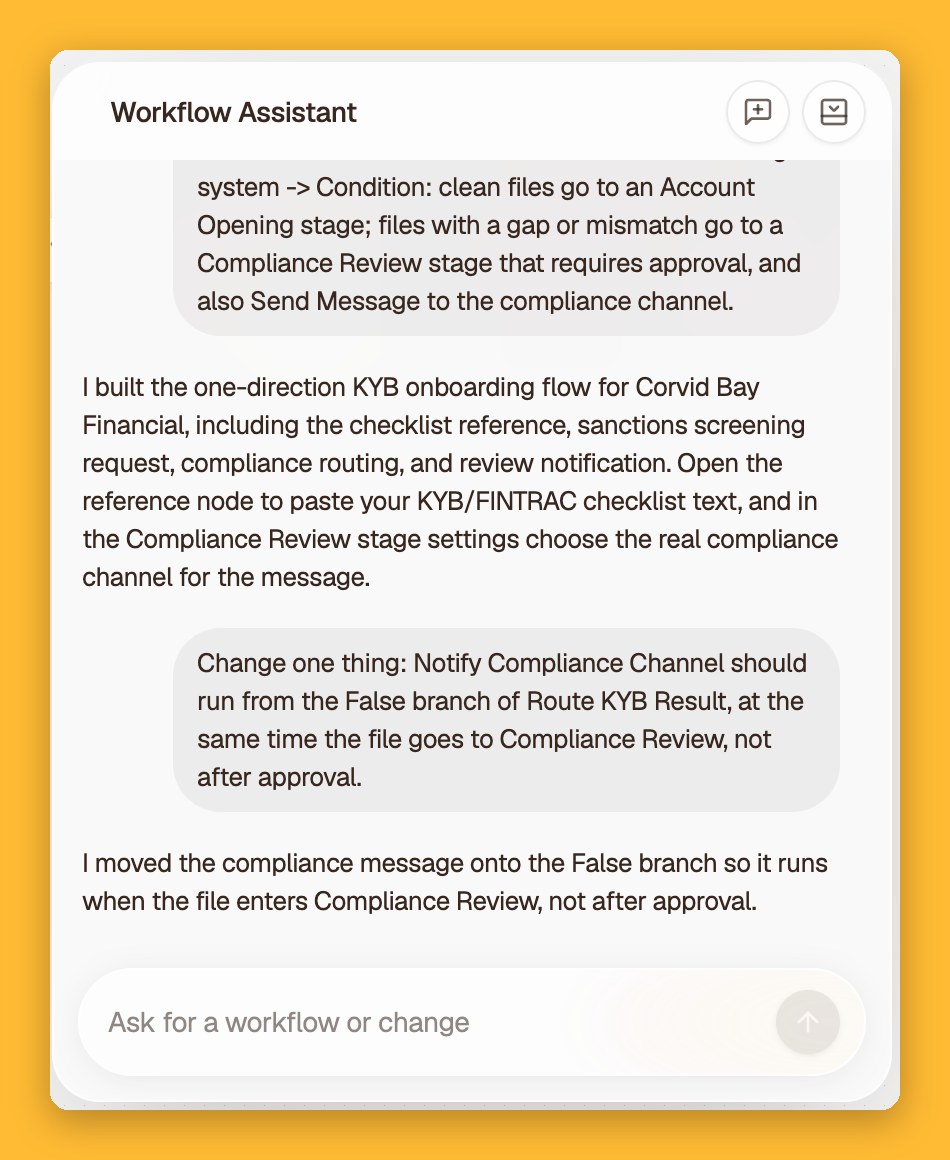
The Assistant also asks when something is unclear, and it edits an existing workflow as easily as it builds a new one. When Corvid Bay's compliance team built their business onboarding flow, it asked where rejected files should go. Later they asked it to move one notification earlier, and it rewired just that step.
Your rules, in your words
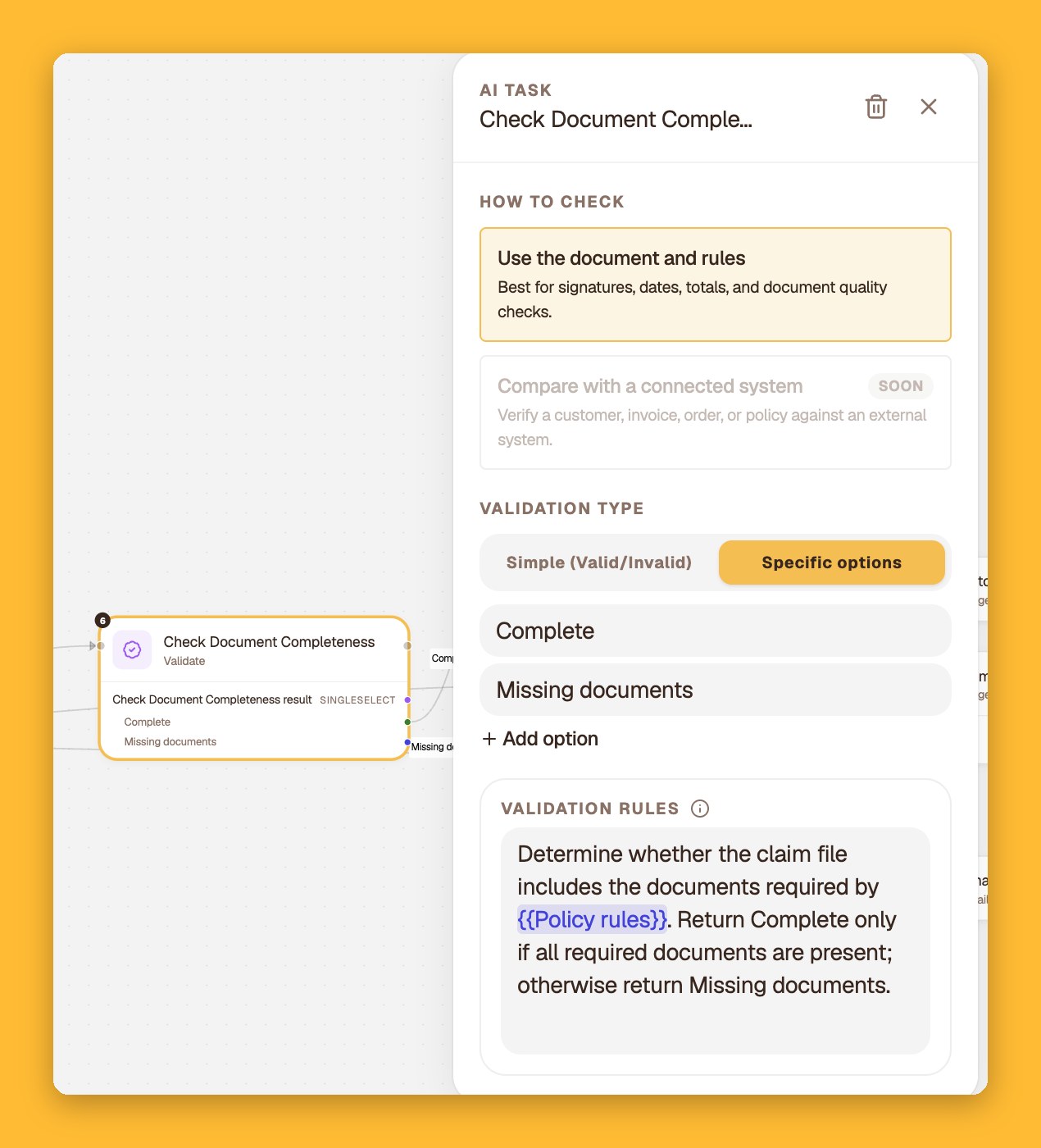
The part people notice first is the AI blocks. Each one is written in plain English, not code.
Rules live in a Reference block. You paste your policy or upload the document once, and any step can point to it by name. Change the policy and every step that uses it follows.
Branches, approvals and follow-ups
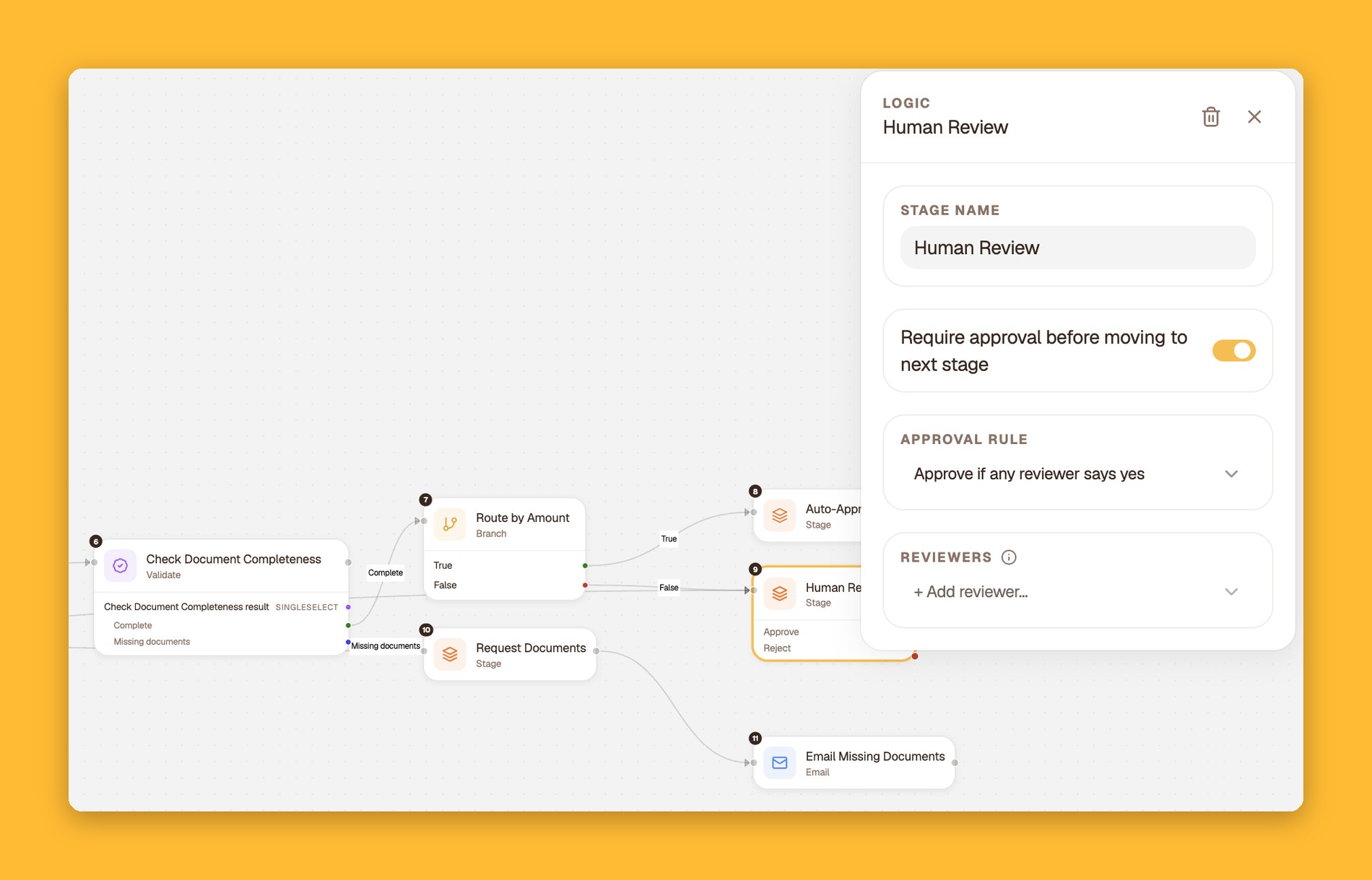
Real processes split. A Condition sends each item down the right path, and a Stage decides whether a person needs to sign off.
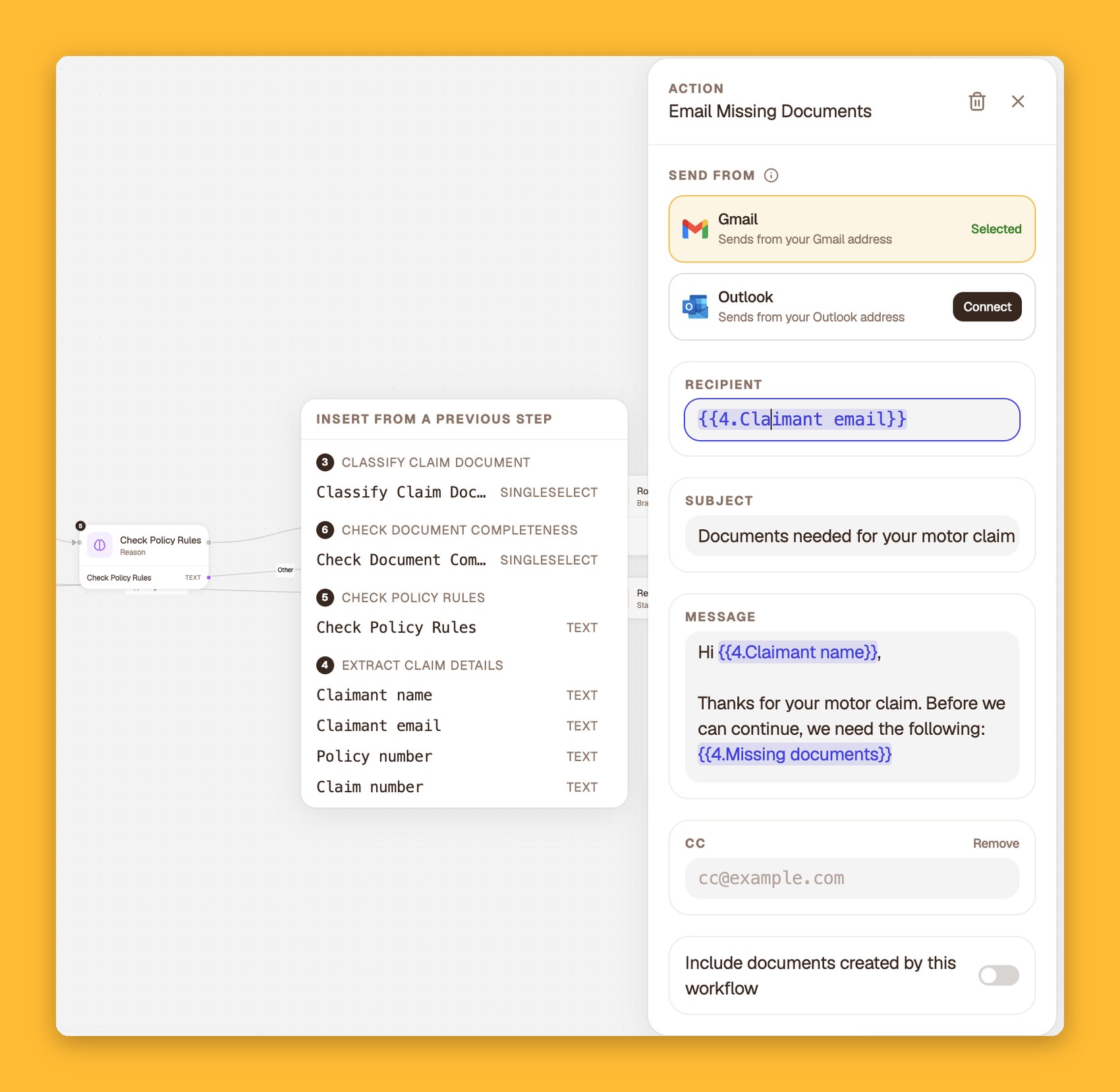
Actions close the loop. The email to the claimant is written once and filled in from earlier steps, so every claimant gets a note that names their claim and the exact documents that are missing.
Watch it run
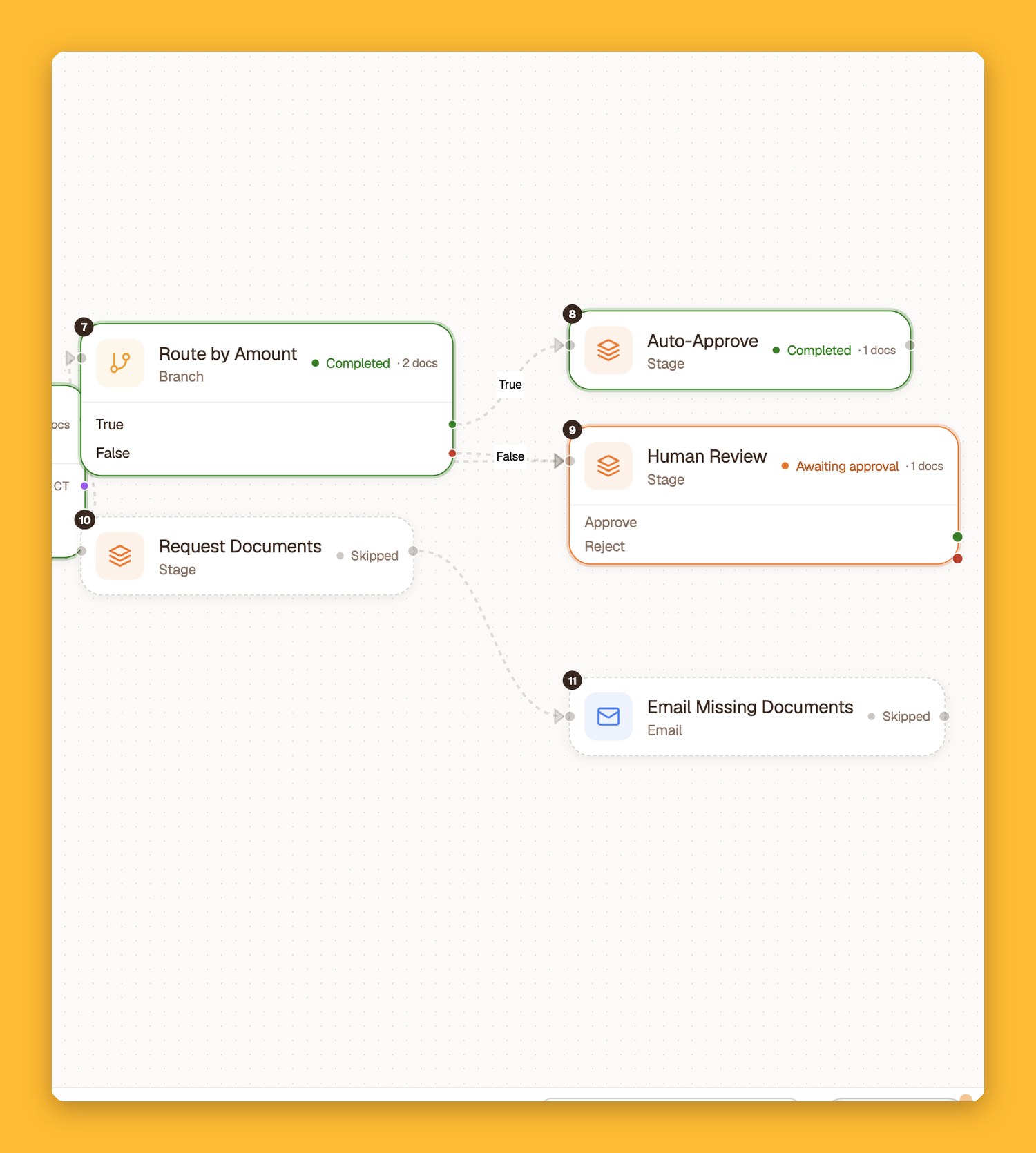
When you run a workflow, the canvas becomes a live map. Every block shows what it is doing and how many documents it has handled. Paths that don't apply are marked as skipped, and anything waiting on a person says so.
It shows its work
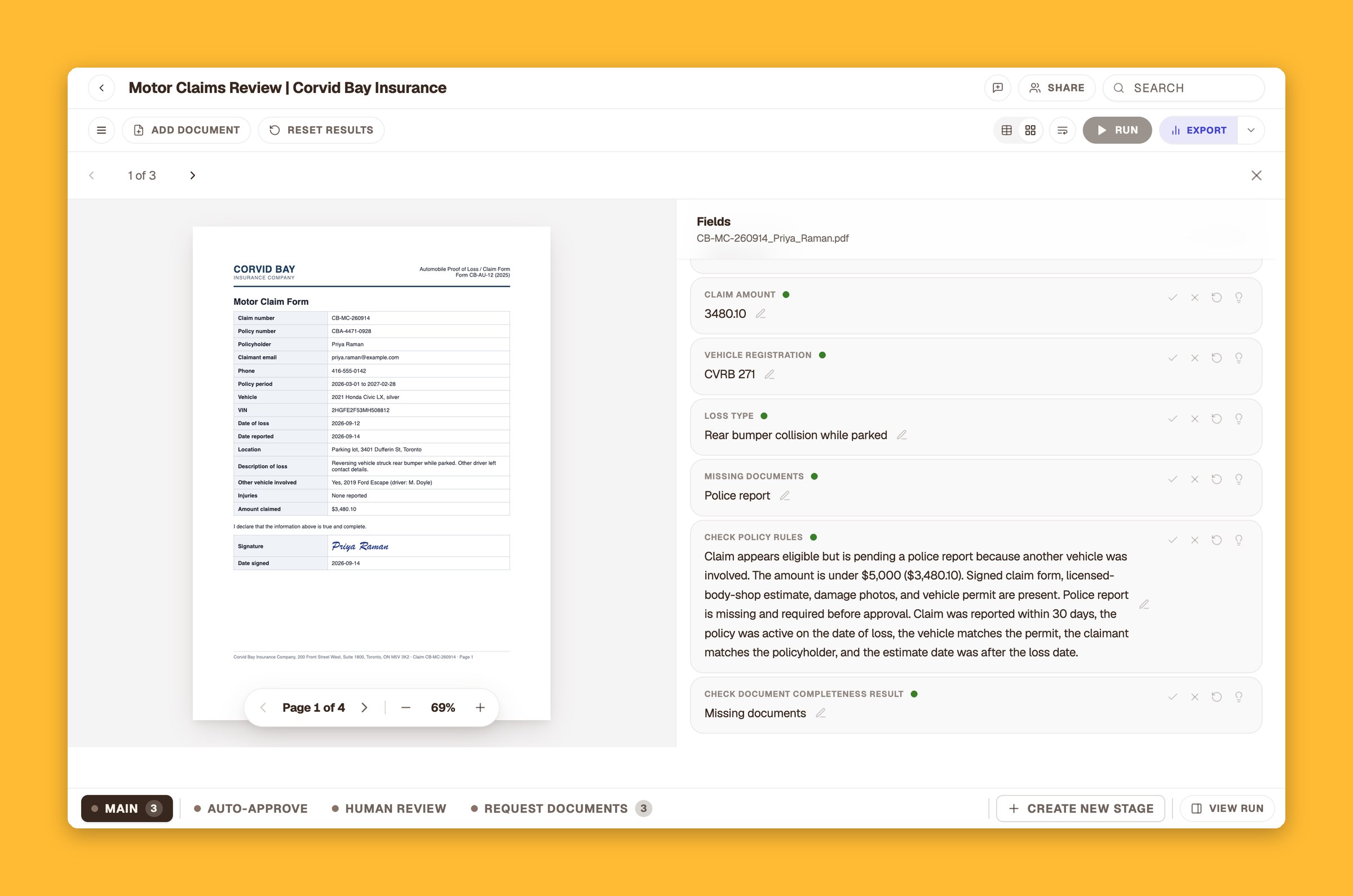
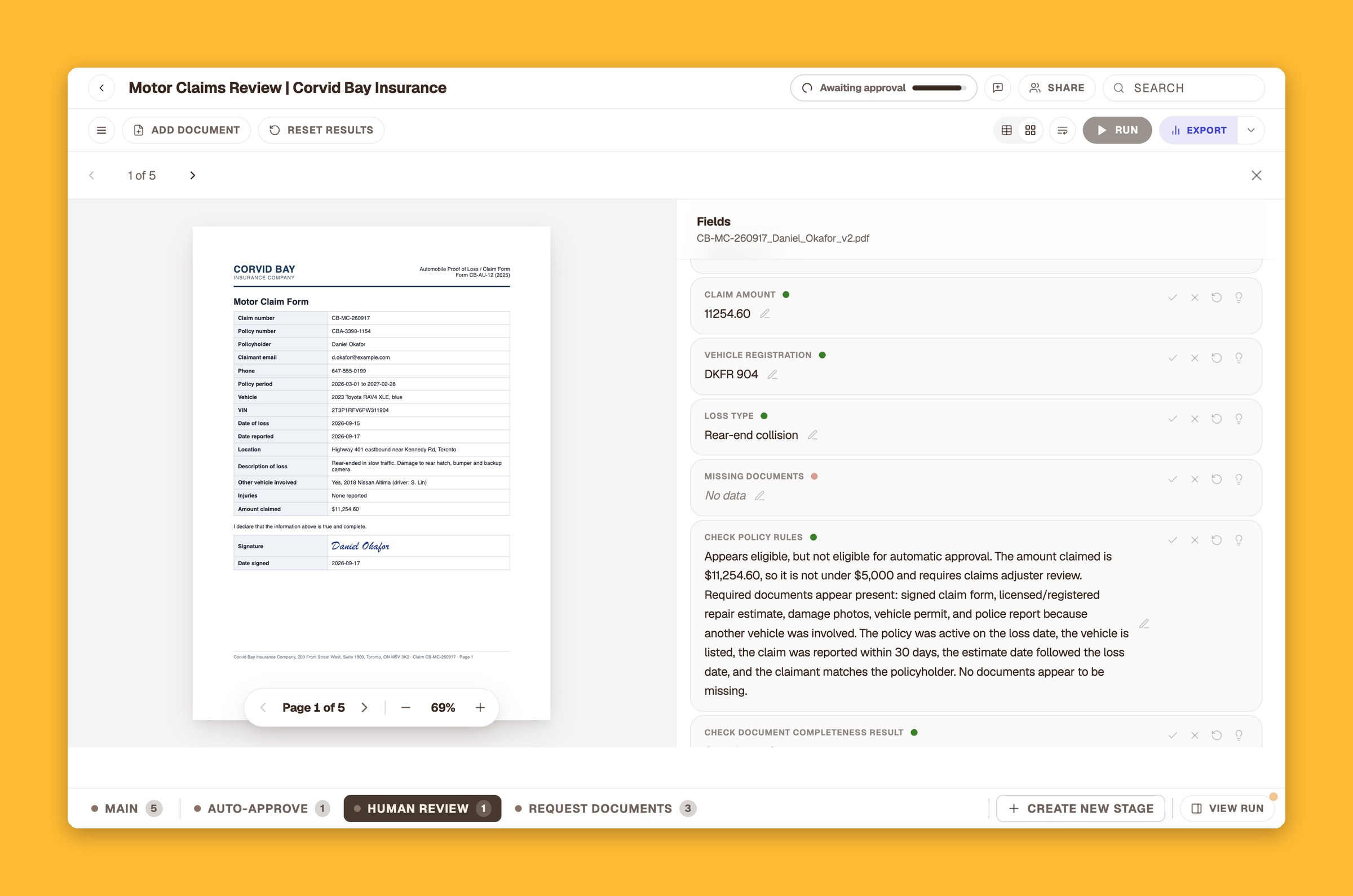
This is the part we care about most. Every answer ALK gives sits next to the page it came from, with the reasoning written out.
When Corvid Bay's claims team ran their first five claim packets through the workflow, two were routed to Request Documents, and at first it looked like something had gone wrong. It hadn't. Their own rules require a police report whenever another vehicle is involved, and neither packet had one. ALK caught it, named the missing document and cited the rule.
Once the police reports came in, the smaller claim was approved automatically and the larger one went to a reviewer, who sees the same evidence before deciding.
Five workflows, each started as a sentence
Each of these started as a plain-English description to the Workflow Assistant, across the teams at Corvid Bay Financial Group: insurance, finance, pensions, lending and compliance. Each team added its own rules to the Reference block.
1. Motor claims review (insurance)
Classify the claim documents, extract the claim, check it against the policy, then auto-approve, send to an adjuster, or email the claimant for what is missing. This is the flow shown above.
2. Invoice three-way match (accounts payable)

3. Retirement benefit applications (pensions)

4. Commercial credit review (lending)

5. Business account onboarding (compliance)

What makes it different
There are a lot of good automation tools. Most of them are built for a different job.
- Tools that connect apps are great at moving data from one system to another when something happens. The document itself, and the judgment it needs, is usually left to a person or to a single AI step with no rules behind it.
- Tools that capture documents are great at turning a page into fields. What happens next, the checking, the routing, the sign-off, the follow-up, usually lives somewhere else.
- Traditional automation projects can do all of it, but they often need developers to build and change, so the people who own the process can't touch it.
The ALK workflow builder brings those pieces together in one place:
- Judgment is a block, not an afterthought. Classify, Extract, Validate and Reason are built for documents and run against rules you write in plain English.
- Your rules are one source of truth. Put a policy in a Reference once and every step uses the same version.
- People are part of the design. Stages with approval, from any reviewer or all of them, sit on the canvas next to everything else.
- Every decision comes with evidence. Each answer sits next to the page it came from, with the reasoning written out, so a reviewer or an auditor can see why.
- The people who run the process can build it. Describe it to the Assistant, adjust it on the canvas, and change it again when the process changes.
Try it on one process
Pick one process your team runs every week. Describe it to the Workflow Assistant the way you would explain it to a new hire, add your rules, and run a few real files through it.
You'll find it in ALK under Workflows > New workflow > Advanced (Beta).